Nozzles & Plates
The Bambu Lab build plate mismatch error
It is a comparison, not a fault. The printer knows which plate it found and which plate your G-code expects, and it has noticed they disagree.
By Michael W. · Published October 6, 2026
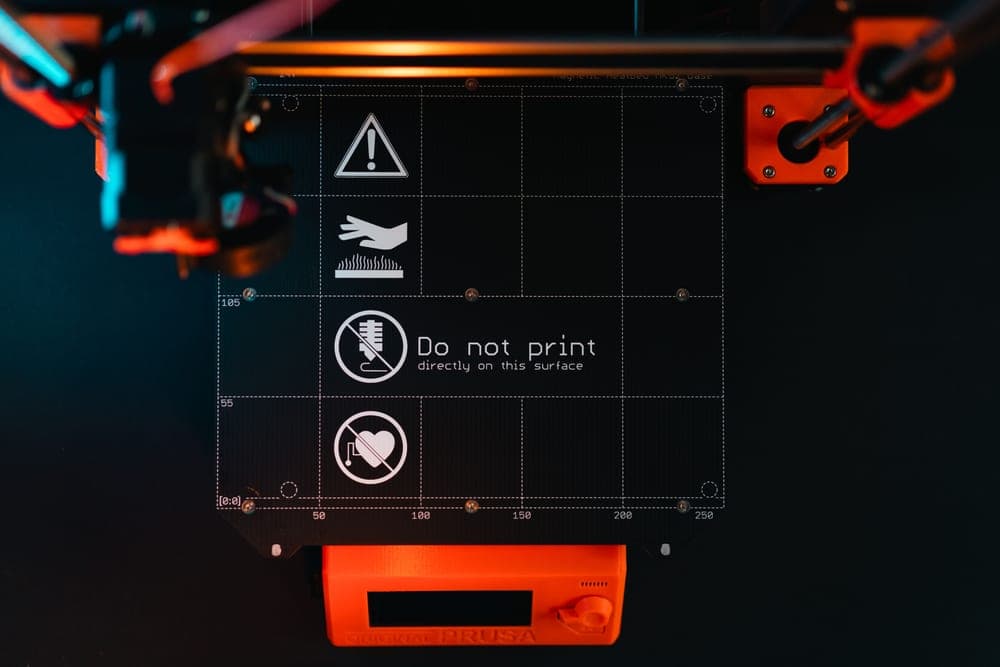
What the error actually means
"The current build plate is not the same as in G-code" means the printer has compared two things and found they disagree: the plate it believes is installed, and the plate recorded in the sliced file you sent it.
It is not a hardware fault and not a symptom of a broken printer. In order of likelihood the cause is: the wrong plate selected in Bambu Studio, the physically wrong plate on the bed, a dirty camera or lens so the plate marker could not be read, a worn or missing marker on the plate, or a third-party plate that carries no marker the printer recognizes.
The fastest fix: look at what is physically on the bed, select exactly that in the slicer's Prepare tab, re-slice, and re-send.
Why the printer cares which plate is fitted
Plate choice changes bed temperature and first-layer behavior. A profile sliced for a smooth PEI plate at one temperature, run on a textured plate, gives you a first layer that is either over-squashed or barely attached. The check exists because that failure is both common and expensive in wasted filament.
How the printer identifies the plate depends on the machine. Lidar-equipped X1-series printers physically scan a marker on the plate — the toolhead travels out to it at the start of a job, which is the movement people notice before the warning appears. On machines without that sensor the check is a comparison between the plate recorded in the G-code and the plate the device has been told is fitted.
Either way the conclusion is the same: the printer is reporting a disagreement, and the thing to resolve is which of the two is actually correct.
The five causes, in order of likelihood
| Cause | Tell | Fix |
|---|---|---|
| Wrong plate selected in the slicer | Happens right after you changed plates or opened someone else's project file | Set the plate in Bambu Studio's Prepare tab, re-slice, re-send |
| Wrong plate physically on the bed | You remember swapping it for the last job and not swapping back | Fit the plate the G-code expects, or re-slice for the one that is fitted |
| Camera or lens dirty | Intermittent; filament residue or haze on the glass lid | Clean the lens and the glass lid, then retry |
| Plate marker worn or damaged | Repeats on one specific plate and never on another | Retire that plate, or accept the warning and verify manually every time |
| Third-party plate with no recognized marker | Started the day the new plate arrived and never stops | Select the closest equivalent official plate profile, and verify it every print |
Fixing it, in the order worth trying
1. Reconcile the two, do not guess
Physically look at the plate on the bed. Textured PEI has a visible grain; smooth PEI is glossy; a patterned plate is obvious. Then open the Prepare tab in Bambu Studio and set the plate to that. Re-slice — the plate identity lives in the G-code, so changing the dropdown without re-slicing changes nothing.
2. Restart both
Multiple reports in the community threads describe the warning persisting until both the printer and the slicer are restarted, even with the correct plate selected. It is an unsatisfying fix and it is worth trying before anything more involved.
3. Clean the lens and the lid
Some filaments leave residue on the glass quickly. If the warning is intermittent rather than constant, a hazy lens is a strong candidate — and it is also degrading your timelapses and your first-layer inspection at the same time.
4. Decide whether the plate is finished
If one specific plate always fails and the others never do, the marker on that plate has worn. Whether that is worth replacing depends on the surface: a worn marker on a worn plate is a replacement, a worn marker on a healthy plate is an annoyance you can work around.
When the warning is right and you are wrong
It is tempting to treat this as noise, and there is one case where doing so is expensive. If the plate fitted is rated for a lower temperature than the profile expects — for example a plate intended for PLA and PETG running an ABS or PA profile at 90-110 C — the warning is the only thing standing between you and damaging the plate surface.
That is why temperature is worth knowing rather than trusting: the published temperature per material for the textured PEI plate is the reference. If the number your profile is about to use is outside what the fitted plate supports, fix the plate rather than the warning.
If the real problem is adhesion rather than detection
A fair share of people who arrive at this error are actually chasing a first layer that will not stick, and found the warning while looking for a cause. The two are unrelated. A mismatch warning does not cause poor adhesion; it warns you that the profile may be wrong for the plate, which can.
If prints are lifting, go to why prints are not sticking and start with washing the plate. If you are deciding which plate to own in the first place, the plate roundup is the page.
What to buy
Stock photograph of this product class, not of this specific unit.
#ad We earn a commission · live price shown on Amazon
1. If the marker is worn off
Bambu Lab Textured PEI Plate
A plate whose identification marker is scratched away will keep failing detection - at some point it is a consumable.
Plate detection depends on a physical marker on the plate. Years of scraping, washing and heat cycling wear it, and a plate whose marker no longer reads will keep producing this warning no matter what you select in the slicer.
If the plate surface is also past its best — patchy adhesion, visible wear zones, needing more bed heat than it used to — then the marker is telling you what the surface already was. Replacing it fixes both.
If the surface is genuinely healthy and only the marker is worn, this is an expensive way to silence a warning. Fix it in the slicer instead and keep printing.
What it gets right
- Powder-coated texture grips hard without glue stick and releases when cool, which is the whole job
- The 0.5 mm steel base is stiff enough that it does not lift at the corners under a hot bed
- Hides first-layer imperfections, so a slightly off Z offset is forgiving rather than a failure
What it does not
- The texture transfers to your first layer — wrong plate for anything whose bottom face is a show surface
- PEI surfaces are consumable; skin oils and over-aggressive scraping both shorten their life
- TPU can grip hard enough on textured PEI to tear the surface on removal
| Surface | Powder-coated textured PEI |
|---|---|
| Base | 0.5 mm stainless steel with enhanced magnetic adhesion |
| Stated strength | Resists warping on large models in ABS, PC and nylon |
Stock photograph of this product class, not of this specific unit.
#ad We earn a commission · live price shown on Amazon
2. If you own one plate and keep swapping
BIQU PyroGrip Textured PEI Plate
Most mismatch warnings come from swapping plates between jobs; owning two in the same surface removes the swap.
A large share of these warnings are self-inflicted: you print PETG on one plate, swap to another for the next job, forget to change the dropdown, and the printer catches it. Owning two plates with the same surface means the swap stops being a slicer event at all.
Cited at roughly half the official plate price with the same surface and mounting system, this is the way most people end up with a second textured PEI plate rather than a second different plate.
It does not help if the point of swapping is a different finish — then you want a dual-texture plate or a patterned one, and you want to keep changing the dropdown. Expect to re-tune Z offset on any third-party plate.
What it gets right
- Same surface technology and mounting as the official plate at a much lower price point
- Makes keeping two or three plates on the shelf a reasonable decision rather than an expensive one
- No adapter, no modification — it drops onto the magnetic bed you already have
What it does not
- PEI thickness and coating consistency vary more between third-party plates than within one brand's official line
- Expect to re-tune Z offset when you swap brands mid-queue
- Not a performance upgrade over the official plate — a price one
| Surface | Textured PEI |
|---|---|
| Mounting | Same mounting system as the official plate |
| Price positioning (cited) | Roughly half the official plate |
Stock photograph of this product class, not of this specific unit.
#ad We earn a commission · live price shown on Amazon
3. If you flip surfaces mid-queue
Bambu Lab Dual-Texture PEI Build Plate
Two surfaces on one plate means the printer sees one plate identity - and you still have to tell the slicer which side you used.
Owning one plate with a textured and a smooth face is the tidy answer to needing both finishes, and it removes an entire category of swap confusion: there is one plate on the bed and one plate in your hand.
It does not remove the slicer step. The two faces behave differently and the profile you select needs to match the face you fitted, so the discipline is the same even though the hardware count is lower.
Smooth PEI is also stricter about Z offset and cleanliness than textured, so a flip that follows a mismatch warning is a good moment to re-check first layer height rather than to assume.
What it gets right
- Two surfaces on one plate — flip it rather than buy and store a second
- The smooth side gives a glossy bottom face that textured PEI cannot produce
- Same 0.5 mm steel backing and magnetic grip as the single-sided plate
What it does not
- Smooth PEI is much less forgiving about Z offset and bed cleanliness than textured
- Flipping means twice the handling, and fingerprints are what kills PEI adhesion
- If 95% of your prints are functional, the textured-only plate is the cheaper right answer
| Surfaces | Textured PEI one side, smooth PEI the other |
|---|---|
| Base | 0.5 mm magnetic stainless steel backing |
| Stated benefit | Enhanced magnetic adhesion, resists warping |
Questions people actually ask
What does "the current build plate is not the same as in G-code" mean?
The printer has compared the plate it believes is installed against the plate recorded in your sliced file, and they disagree. It is a comparison rather than a hardware fault. The usual cause is the wrong plate selected in Bambu Studio, or the wrong plate physically on the bed.
How do I fix the Bambu Lab build plate mismatch error?
Look at the plate that is physically on the bed, select exactly that plate in Bambu Studio's Prepare tab, then re-slice and re-send. The plate identity is stored in the G-code, so changing the dropdown without re-slicing does nothing. If it persists with the correct plate selected, restart both the slicer and the printer.
Why does my printer not detect the build plate marker?
Most often a dirty camera lens or glass lid - some filaments leave residue quickly, and an intermittent warning points at haze rather than at the plate. The other common cause is a worn marker on an older plate, which shows up as a warning that repeats on one specific plate and never on the others.
Can I turn off build plate detection?
Yes - the community-documented route is to comment out the plate-detection lines in the machine start G-code with a semicolon. It removes the warning and it also removes the safety net, so from then on nothing stops you running a high-temperature profile on a plate that is not rated for it. Checking the plate by eye before every print becomes mandatory.
Will a third-party build plate always cause this error?
It will if the plate carries no marker the printer recognizes. The practical approach is to select the closest equivalent official plate profile so the temperatures are right, accept the warning, and verify by eye each print. Also re-tune Z offset, because third-party plate thickness genuinely varies.
Does the mismatch warning cause bad first layers?
No, but it warns about something that can. The plate you select sets bed temperature and first-layer behavior, so a profile sliced for a different plate can give you a first layer that is over-squashed or barely attached. If prints are lifting, wash the plate with detergent and water first - grease is the more common cause.
Sources
- Build plate mismatch and plate-marker detection behavior, and the reported workarounds - Bambu Lab community forum threads, retrieved 2026-10-06
- Bambu Textured PEI Plate recommended heatbed temperatures and glue-stick requirements per material - official Bambu Lab store product page, retrieved 2026-10-06
- BIQU PyroGrip textured PEI plate pricing and mounting - bambuhub.net build plate roundup
Read this next
- When prints will not stick to the plateAdhesion failures in diagnostic order, starting with the free fix that resolves most of them, and the material-specific exceptions.
- Textured PEI plate temperature, by materialBambu Lab's published heatbed temperature for every material on the textured PEI plate, and the three things to change before you raise it.
- The best build plates for a Bambu LabTextured, dual-texture or third-party - which plate to buy, and why owning two beats owning one good one.
- The textured PEI plateWhy textured PEI is the right default plate, how to clean it so it keeps working, and the one material it is wrong for.
- Print quality triageThe central symptom-to-cause table for the whole site, with the two free checks that resolve most problems before any purchase.
- When a Bambu Lab firmware update gets stuckWhy firmware updates hang at an arbitrary percentage, the order to try the three delivery routes, and whether you should be updating at all.